Google My Business Is Changing to Google Business Profile
With Christmas rapidly approaching, many customers have already started their Christmas shopping. If your shop is open for in-store shopping or dining, it’s important to make sure your customers can easily find you online. To help, Google has unwrapped new local solutions plus a local holiday guide to help you stand out on Google and connect shoppers to your shop!
Claim and Verify
Did you know that you can now claim and verify your Business Profile directly on Google Search or the Google Maps app? Search for your business by name and you’ll see an option to claim and verify the associated Business Profile. Once your business is verified, you can edit your business’ information, including the address, opening hours, photos and more.
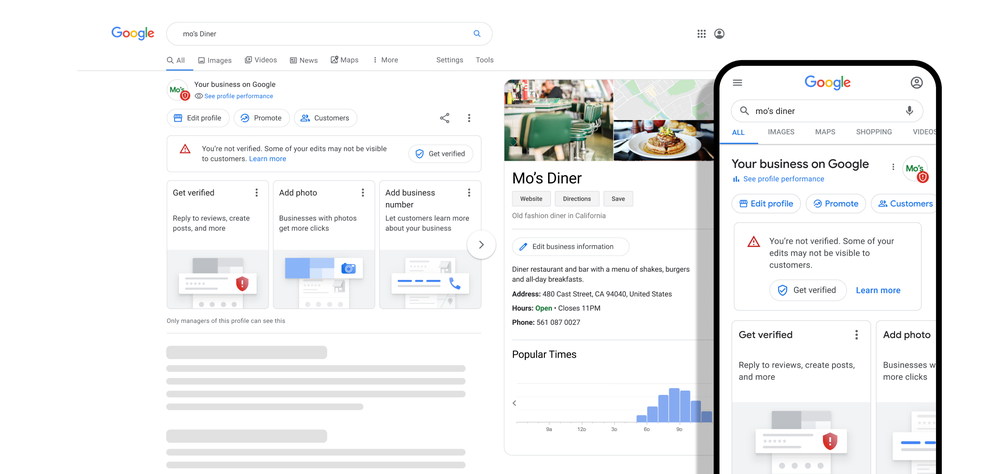
Update your Business Profile and engage with customers directly from Search and Maps.
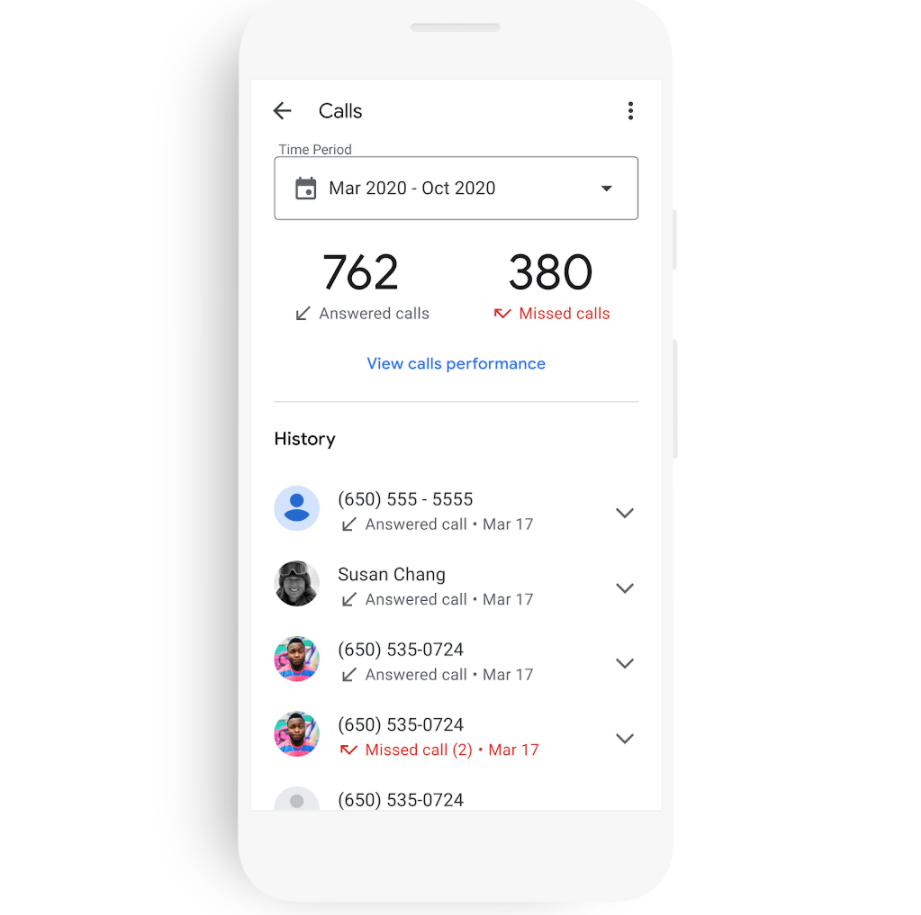
They have also added new ways to get even more out of your Business Profile. You can now message customers directly from Search, and merchants in the U.S. and Canada (hopefully the UK will follow) can use call history to see which inbound customer calls came from their Business Profile on Google.
Moving forward, Google is recommending small businesses manage their profiles directly on Search or Maps. To keep things simple, “Google My Business” is being renamed “Google Business Profile.” And in 2022, they will retire the Google My Business app so more merchants can take advantage of the upgraded experience on Search and Maps.
The existing Google My Business web experience will transition to primarily support larger businesses with multiple locations, and will be renamed “Business Profile Manager.” We’ll share more details on these changes in the months ahead.
Further Information
If you’d like to speak to us regarding any of our services, including our online marketing services, please give us a call on 01883 372488 or contact us via Facebook and we’ll be happy to talk you through your options.
Currently Browsing: Google My Business Is Changing to Google Business Profile
How To Use Google Local Ads To Help Your Business
Local Services Ads help you connect with people who search on Google for the services that you offer. Your ads will show up for customers in your area, and you only pay if a customer contacts you directly through the ad.
Local Services Ads works with the budget you set for your business. You can increase or reduce the amount that you spend at any time, or pause your ads altogether.
Designed specifically to help promote the services of local service providers, if you fall into any of the following categories, you could well be eligible for an account.
- Appliance Repair
- Carpentry
- Carpet Cleaning
- Countertop Services
- Electrical
- Fencing
- Flooring
- Foundations
- Garage Door
- General Contracting
- Handyman
- Home Inspection
- House Cleaning
- HVAC
- Landscaping
- Lawn Care
- Moving
- Pest Control
- Plumbing
- Pool Cleaning
- Pool Contractor
- Roofing
- Rubbish Removal
- Siding
- Snow Removal Services
- Tree Surgeon
- Water Damage Services
- Window Cleaning
- Window Services
This specialist version of Google Ads is aimed specifically at small businesses and service professionals that wish to target new customers, maximise leads, obtain more jobs along with building a trusted reputation for their business …
Google’s Local Service Ads are a great way to complement local SEO strategy for businesses in specific industries such as locksmiths, plumbers, cleaners, and gardeners.
5 Steps To Help Grow Your Business
Only pay for results – Control your budget and only pay when a customer gets in touch directly from your ad, so that you can focus on real results for your business.
- Tell them about your business – Tell us where you’re located, what services you offer and set your budget so that we can show your ads to the right customers at the right time.
- Become a Google Guaranteed provider – To become a Google Guaranteed business, we’ll ensure that your business meets local licence and insurance requirements.
- Get discovered – We’ll start showing your ads on Google to customers in your area that are actively looking for your services.
- Book jobs – Once a customer sees your ad, they can contact you directly from your ad. You choose what jobs you want to take and track your appointments.
- Maintain and grow – Use the dashboard or mobile app to maintain and grow your business by updating or pausing ads, optimising your account and adjusting your budget.
Control your budget
Local Services Ads works with the budget you set for your business. You can increase or reduce the amount that you spend at any time, or pause your ads altogether.

Need Some More Help
Would like to find out more about Google Local Services Ads? Give the Footprint Digital team a call on Tel. No. 01883 372488 today.
Currently Browsing: How To Use Google Local Ads To Help Your Business
How To Create A Google Ads Account
Have you ever thought about using a Google Ads account to give your business a boost? Whilst we will always believe that SEO offers longer-term benefits, the creation of a well-optimised Google Ads account can work well in random with your other online marketing efforts to help maximise your online visibility.
Sign up with Google Ads to start reaching new customers with online ads tailored to your business goals and budget. This guide will walk you through creating your Google Ads account and setting up your first ad campaign.

Before you begin
To create your Google Ads account, you’ll need an email address and website for your business. Even if you don’t have a website, you can still advertise on Google using Smart campaigns, the default Google Ads experience for new advertisers. You can also create your first ad in just 15 minutes.
Instructions
Google Ads provides two modes when you’re creating an account. These are Smart mode and Expert mode. By default, your account will be created in Smart mode. However, if you’re a professional marketer, you can switch to Expert mode. Learn more about Smart mode and Expert mode
Smart mode
- In Google Ads, sign in to your existing Google Account or create a new one.
- If you already have a Google Account (in other words, if you use any other Google product, such as Gmail), enter your Google email address and password, then click Sign in.
- If you don’t have an existing Google Account, or want to use a different email address to sign in, click Create an account at the bottom of the screen and follow the instructions to create and confirm your new Google Account.
- To create your first campaign, set up the following:
- Campaign goal
- Business name and website
- Ad (including headlines, descriptions and a phone number)
- Keyword themes
- Location settings
- Budget
- On the last page, set up your billing information by following these steps:
- Click the ‘Billing country’ drop-down menu and select the country or territory where your billing address is located. Your billing country determines the billing options that are available for your location and currency.
- Make sure that the correct time zone has been selected. If not, click the drop-down menu to change it. Your reports, statistics and billing are all affected by the time zone that you select, so choose carefully.
- If you have a promotional code (also known as coupons or vouchers), enter the code in ‘Introductory offer’ and click Apply.
- You’ll be prompted to select either an existing payment profile or to create a new one. Your ‘Account type’ will default to ‘Organisation’, but you can change to ‘Individual’ if appropriate, for tax purposes in your country.
- Enter information for the payment method that you want to use for this account, such as a credit or debit card, PayPal or bank account.
- Click Submit to create your campaign and complete your account setup.
After you’ve created your campaign and set up your account, it will take about a day to approve your ad. Then it can start showing to potential customers.
Contact Us
Footprint specialises in creating bespoke websites designed to help take your business to another level. We have been providing web design Surrey since 1998 and if you’d like to speak to us regarding any of our services, give us a call on 01883 372488 or contact us via Facebook and we’ll be happy to talk to you through your options.