How To Create and Use Email Signatures in Mail on Mac
Offering the ideal way to personalise your e-mails along with promoting key information such as:
- Your website URL
- Your logo
- Your business address
- Social Media channels
The addition of an e-mail signature can be hugely beneficial. One of our most commonly received questions relates to adding an e-mail signature to outgoing e-mails. Depending on the platform or device that you are using, the process can actually be a little different.
Below, we have a guide to adding an email signature when using a Mac.
How To Add An Email Signature On A Mac
You can create prepared text, called a signature, to include when you send email messages. For example, you can create one signature for your work email and another signature for your personal email.
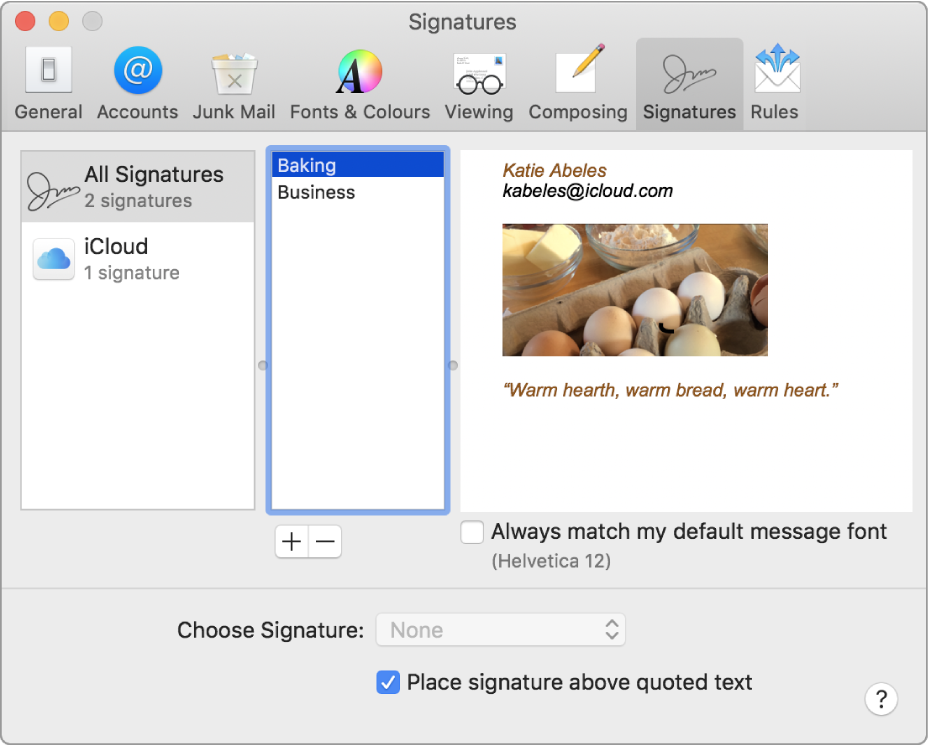
Creating signatures
- In the Mail app
 on your Mac, choose Mail > Preferences, then click Signatures.
 - In the left column, select the email account where you want to use the signature.If All Signatures is selected when you create a signature, you’ll need to drag the new signature to an email account before you can use it.
- Click the Add button below the middle column.
- In the middle column, type a name for the signature.The name appears in the Signature pop-up menu when you write a message.
- In the right column (the preview), create your signature.You can use the Edit or Format menus in Mail to change the font or layout, turn text into links, or check spelling. To add an image, drag it into the preview area.
 on your Mac, choose Mail > Preferences, then click Signatures.
 below the middle column.
If you want your signature to appear after the original text of messages you reply to or forward, deselect the “Place signature above quoted text” tickbox.
Deleting signatures
- In the Mail app on your Mac, choose Mail > Preferences, then click Signatures.
- Select a signature in the middle column, then click the Remove button .
 .
.When you delete a signature from All Signatures, it’s deleted from any account that uses it.
Automatically add a signature to emails
You can choose a signature to automatically add to messages you send.
- In the Mail app on your Mac, choose Mail > Preferences, then click Signatures.
- Select an account in the left column.
- Click the Choose Signature pop-up menu, then choose a signature.If you have more than one signature for an account, Mail can automatically alternate between them — choose At Random or In Sequential Order from the pop-up menu.
If you want to stop having a signature automatically added to your messages, click the Choose Signature pop-up menu, then choose None.
Adding a signature to emails yourself
- In the Mail app on your Mac, click the Signature pop-up menu in the message you’re writing.
- Choose a signature.If you don’t see an expected signature in the pop-up menu, choose Edit Signatures to open Signatures preferences and verify the signature is in the account.
Removing a signature from emails
- In the Mail app on your Mac, click the Signature pop-up menu in a message you’re writing, then choose None.
Depending on how a recipient’s mail server handles signatures, your signature may appear as an attachment or image to the recipient.
If you use iCloud Drive on your Mac and other devices, your signatures are automatically updated and available on those devices. See Use iCloud Drive to store documents.
If you need to send a signed PDF document, you can use Markup in Mail to create a handwritten signature and add it to the document. You can also use the Preview app to fill out and sign PDF forms.
Contact Us
If you would like to speak to someone about personalising your e-mails, please contact Footprint Web Design on Tel. No. 01883 372488 today.
Currently Browsing: Create and use email signatures in Mail on Mac
3 Tips For Successful Blogging
There are a variety of ways that blogs can help your website, from offering the perfect way to add fresh content to your website to get in Google’s good books, the addition of a blog to your website is all positive!
However, it is important to note that adding a blog to your website is not enough on its own, you actually have to use it! You don’t need to go crazy, a blog a week should be fine and is enough to ensure that visitors to your website know that your website is regularly updated.
To help you along the way, we have identified 3 steps to help make your blog successful.

Step 1: Put Aside Some Time
This may be the hardest part. We understand that your time is precious and you may want to do other things with your spare time (if you have any!).
Don’t forget though that blogging is a form of marketing that can keep on giving. You don’t need to dedicate 1 day a week to writing a blog, anywhere from 30 mins to an hour should be enough to write a quality blog.
Step 2: Choosing The Right Subjects
Whilst this may seem tricky, many effective blogs are written about fairly basic subjects. For example, if you are a plumber, do you know of any ways your customers could save a bit of money during the expensive winter heating months? If so, why not write a blog about it?
Do you have a new product or service you would like to promote? Have you seen a recent story in the press that you would like to tie in? Anything from 300 to 500 words will be absolutely fine and you will be amazed how quickly this can come together once you start typing away.
Pick a catchy title ‘5 ways to save money this summer’ for example and start typing!
Top Tip – If the creative juices are flowing and you have 2 or 3 good ideas, keep a note and put them aside for another day.
Step 3: Leave it to us!
If you find steps 1 and 2 a little bit too time-consuming, why not leave it to us!? We love creating fresh and interesting content for our clients and would be more than happy to create something special for you!
Further Information
If you’d like to speak to us regarding how we can help you to use web design to grow your company, give us a call on 01883 372488 or contact us via Facebook and we’ll be happy to talk you through your options.
Currently Browsing: 3 Tips For Successful Blogging
3 Steps To Social Media Success
To help you navigate your way through the Social Media Jungle, we have drawn up our top 3 tips for success. Whether you are looking to communicate with your customers, other businesses or just to promote a chosen message, Social Media channels offer one the ideal way of getting important content out to the world.
However, despite the easy to use and free nature of modern-day Social Media, it can be all too easy to get a little lost. With our 3 tips below, we think that we can help to guide you in the right direction.

Step No. 1 – Understanding Your Options
With so many Social Media channels available, all with their own individual strengths, it’s important to see which ones may prove to be beneficial for you.
Below is a little cheat sheet for some of the strengths of the common Social Media channels.
This is ideal for:
- Providing to the point updates
- Communicating with customers
- Using hashtags to tap into relevant streams
This is ideal for:
- Showing the visual side of your business
- Reaching a wide audience
- Targeting a younger generation
This is ideal for:
- Engaging with customers
- Driving traffic to your website
Please note: The paid social advertising options can be perfect if you have a particular demographic that you would like to target.
Step No. 2 – Do Your Homework
The vast majority of Social Media updates take place in public. Therefore there is absolutely nothing stop you taking a look at what your competitors are doing to see if you can take any inspiration.
Take a look around to find the following information about your competitors Social Media habits:
- Which channels are they using (i.e. Twitter, Facebook, LinkedIn, Instagram, Pinterest)
- Do they engage with customers &/or other business?
- How frequently do they send out updates
Top Tip – Patience is a virtue! You may be raring to go but a little bit of homework can go a long way.

Step No. 3 – Don’t Be Shy
Now that you’re ready to go, go for it! Sitting back and waiting for things to happen is very unlikely to work!
Get your message out there. Contact potential customers to see if you can help them. What’s the worst that can happen??
Contact Us
If you would like to put your website in the hands of a company who will take it forward, please contact Footprint Web Design on Tel. No. 01883 372488 today.