How To Use A Facebook Business Page
After you create your Page, Facebook offers a range of free features to start connecting with new and existing customers and Page fans.
What you need when you create a Page
-
A personal Facebook profile: To create a Page, you need a profile. Information from your personal Facebook profile won’t appear on your Facebook Page unless you share it there. Your profile and Page are considered separate on Facebook.
-
Category: Select a category for your Page. The category that you choose will provide unique features for your business.
-
Information about your business: To get the most out of your Page, add details about your company or organisation, such as address, areas serviced, email, phone number, website, hours, story, images and more. Have this information ready to go when you create your Page.
-
Goals you’d like to achieve: When you create a Page, have a clear set of goals for what you want to achieve. Make sure that you’re taking advantage of your Page’s unique features.
-
Insights: Page Insights can help you understand your audience better and the content they interact with most. Pay close attention to insights, such as Page likes, views, reach and information about demographics. Learn more about how to leverage insights.
-
Stay active: Typically, Facebook Pages perform best when you interact with your Page fans, post often, include contact details and other information and use Page Insights.
What do you do once you’ve created a Page?
Publish new content.
Your Page should be active and informative before you start promoting it, so start posting updates as soon as it’s live. New photos and updates help to keep your Page fresh for visitors. You can extend the reach of your posts beyond your Page followers by boosting your posts and selecting the people you want to connect with.
Start messaging.
Let people send your business private messages to ask questions, get in touch or make suggestions. Facebook Messenger is integrated with your Page, so you can connect with customers one to one.
Add special features.
To make your Page more useful for people, you can also add special content to your Facebook Page, such as displaying your menu, listing your services or showcasing your products with a shop section.
Promote your Page.
Once your Page has been set up, invite your customers and contacts to connect with you there to get in touch and keep up to date with what’s going on. You can also run ads to find brand-new followers.
Keep improving.
Click on Insights at the top of your Page to see how people are engaging with your business – you’ll see how many people you’re reaching with your posts and which content they like best. Seeing how your Page is performing can help you to define a better content strategy.
Learn how to set up and optimise your Facebook Page for engagement in the Advertiser Help Centre.
Contact Us
Footprint specialises in creating bespoke websites designed to help take your business to another level. We have been providing web design Surrey since 1998 and if you’d like to speak to us regarding any of our services, give us a call on 01883 372488 or contact us via Facebook and we’ll be happy to talk to you through your options.
Currently Browsing: How To Use A Facebook Business Page
How To Update Your LinkedIn Company Page
As a LinkedIn Page or Showcase Page super admin on a LinkedIn Page or Showcase Page, providing accurate details about your organization helps members make an informed decision about following and engaging with your Page and organization. You can edit details on LinkedIn Pages or Showcase Pages, ranging from the cover image to office locations and Featured Groups.
You can use the customized guidance on your LinkedIn Page when building or editing it.
Begin editing information on the All Pages or Home tab of your LinkedIn Page or Home tab of your Showcase Page:
- Access your Page Super admin view.
- Click the Edit Page button in the upper right corner of the header section. From here, you can edit the information displayed on the Home and About tab in the member view.
Learn more about using the My Company tab and updating your LinkedIn Page cover image.
Header Section
The Header section is where you can update your Page’s header, tagline, logo image, name, and call-to-action buttons.
Logo Image
About Section
The About section offers super admins the opportunity to update their organization’s description and details, locations, groups, and manage Page information in different languages. Follow the steps below to update the sections as needed.
Overview
Note: Required fields are marked with an asterisk. An error message will appear if a required field is blank when you try to save your edits.
iOS
If you have LinkedIn Career Pages for your LinkedIn Page, learn more about editing the Life tab and the Jobs tab.
Contact Us
Footprint specialises in creating bespoke websites designed to help take your business to another level. We have been providing web design Surrey since 1998 and if you’d like to speak to us regarding any of our services, give us a call on 01883 372488 or contact us via Facebook and we’ll be happy to talk you through your options.
Currently Browsing: How To Update Your LinkedIn Company Page
Did You Know Facebook Business Pages Have Been Redesigned
Today, we’re rolling out the redesigned Facebook Pages experience that makes it simpler for public figures and creators to build community and achieve their business objectives.
What’s New:
- Re-designed layout that’s simpler and more intuitive
- Dedicated News Feed to discover and join conversations, follow trends, interact with peers and engage with fans
- Easy navigation between personal profile and Pages
- Updated task-based admin controls giving trusted Page admins full control or partial access
- Actionable insights and more relevant notifications
- Safety and integrity features to detect spammy content and impersonator accounts
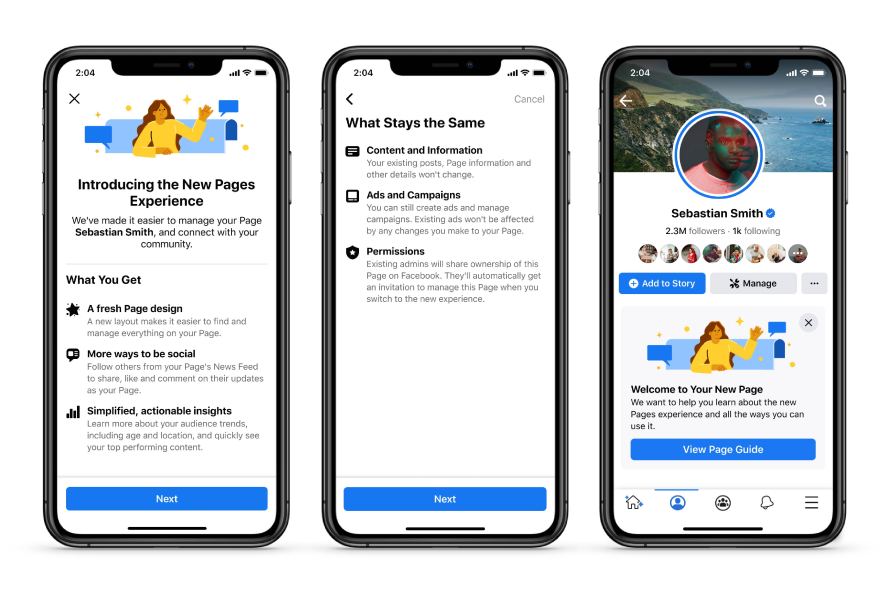
Simple and Intuitive Page Design
Now it’s easy to navigate between a personal profile and public Page. We’ve redesigned the look and feel to be cleaner and more streamlined than before — including making it simple for people to see bios, posts and other important info.
Dedicated News Feed and New Ways to Engage
We are bringing the power of News Feed to Pages for the first time. Now Pages can discover and join conversations, follow trends, interact with peers and engage with fans. The dedicated News Feed will also suggest new connections — other public figures, Pages, Groups and trending content that a Page or public figure cares about.
To make Page conversations more visible to a wider audience and surfaced more frequently in their followers’ News Feed, comments from public figures will be bumped to the top of the comments section. People will also be able to follow Pages directly from comments and recommendations posts.
New Q&A Format
To support richer, interactive conversations, we are also introducing a new text-based Q&A format.
Focus on Page Followers
We are removing Likes and focusing on Followers to simplify the way people connect with their favourite Pages. Unlike Likes, Followers of a Page represent the people who can receive updates from Pages, which helps give public figures a stronger indication of their fan base.
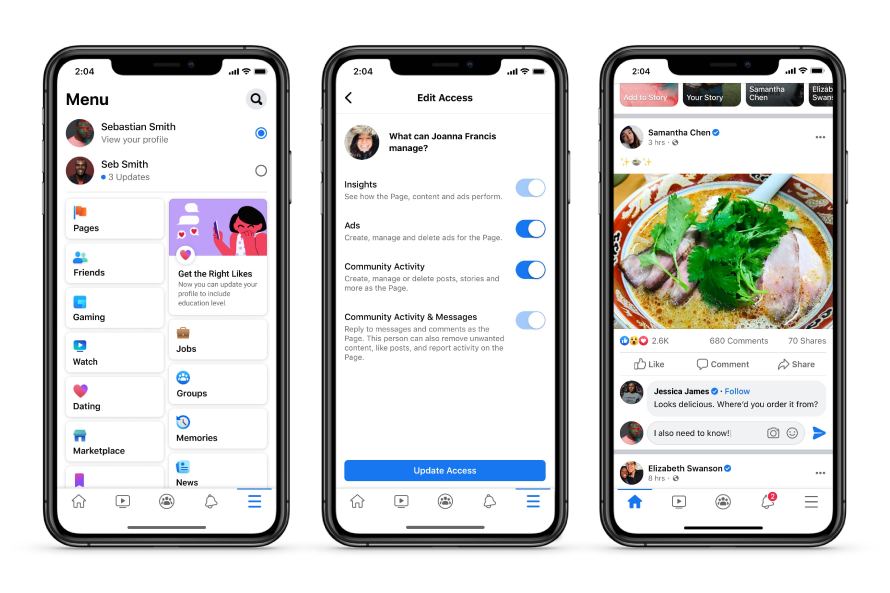
Improved Page Management Tools
We’ve added new Page management features click here— like the ability to more clearly assign and manage admin access permissions based on specific tasks. For example, you’ll now be able to grant varying levels of access to manage specific tasks including Insights, Ads, Content, and Community Activity & Messages. This will also ensure account safety and integrity.
Safety and Integrity Features
We want Facebook to be a safe place to connect with fans, so we’ve improved our ability to detect activity that isn’t allowed on our platform including hate speech, violent, sexual or spammy content and impersonation. We are continuing to expand the visibility of a verified badge to make it easier to identify posts and comments from authentic Pages and profiles. A verified Page’s comment on another Page’s public post, may appear higher in the comments section and be visible in News Feed.
For the full guide, please click here.
Contact Us
Footprint specialises in creating bespoke websites designed to help take your business to another level. We have been providing web design Surrey since 1998 and if you’d like to speak to us regarding any of our services, give us a call on 01883 372488 or contact us via Facebook and we’ll be happy to talk you through your options.